Help centre
Cross-dock (break-down) warehouses in Linari WMS
In short. In a cross-dock warehouse, goods arrive for orders that already exist and leave again without being stored. Each supplier delivery (a purchase order, PO) comes with the stores’ orders attached. Linari receives the delivery, splits what arrived between those stores, and the goods are then picked, checked and dispatched store by store, usually on the day they arrive. In the Linari menu, cross-dock is called Break-Down, or BD for short.
- The PO arrives with the stores’ orders attached.
- Receive the PO: count it on the handheld or on the web, and create the receipt.
- Split what arrived between the stores, then Confirm the split.
- Pick the PO for its stores, on the handheld or on the web.
- Check each store’s goods onto its own pallets, then dispatch as usual.
How it differs from a standard warehouse
| Standard warehouse | Cross-dock warehouse | |
|---|---|---|
| Orders | Store orders arrive on their own and take stock from the shelves. | Store orders come with the PO and wait for that delivery. |
| Stock | Kept in locations until it is ordered. | Not stored: no locations and no put-away. Everything received is shared out between the stores of the PO. |
| Giving stock to an order | Confirm on Shipping Order reserves stock. | Split and Confirm on Split give each store its share. |
| Picking | Per order, from locations. | Per PO, for its stores, from the delivery. |
| Undo | Picking and checking can be cancelled. | They cannot be cancelled. Before checking, Rollback-BD takes a PO’s picking back; losses are recorded as Waste. |
| Stock count | Cycle Count. | None: nothing stays in stock. |
Before you start
- The warehouse’s Flow Type is Break-Down and it has a Split Method. Linari sets these during setup.
- The products, their barcodes and their pack size (PCB) exist in the warehouse.
- The stores exist under Master Data > Orderer. Their Sequence Number is their order on the floor.
- The workers have the counting, picking and checking permissions they need.
1. The orders arrive with the PO
Most POs come from your own system through the integration, with each store’s order (LPO) already linked to them. To load them by hand, open Receiving Management > Purchase Order and click Import PO-LPO. The Excel file has two sheets:
- PO: the supplier’s lines: product code, barcode, description and quantity.
- LPO: each store’s order: the store code, the order number, the product, the quantity, the order date, the expected delivery date and the product status.
A store can order only products that are on the PO.
2. Receive the delivery
The steps are those of Receive goods, with a few rules of their own.
- Open Receiving Management > Receiving Order, select the PO and click Receiving All Detail. Linari creates the receiving.
- Give it to a worker on Receiving Worker Assign.
- The worker counts it on the handheld (Count), or you count it on the web: Receiving Count > Count, then Confirm.
- Open Receiving Management > Receipt, tab Create Receipt, and click Create Receipt.
- Only products that a store ordered can be counted.
- With Enable Count With PCB, the count is a whole number of packs.
- Receiving less than expected is fine: the stores share what arrived.
- The received goods are in stock but in no location; Inventory Management > Inventory shows them with the PO’s number in Reference No. (PO).
3. Split the delivery between the stores
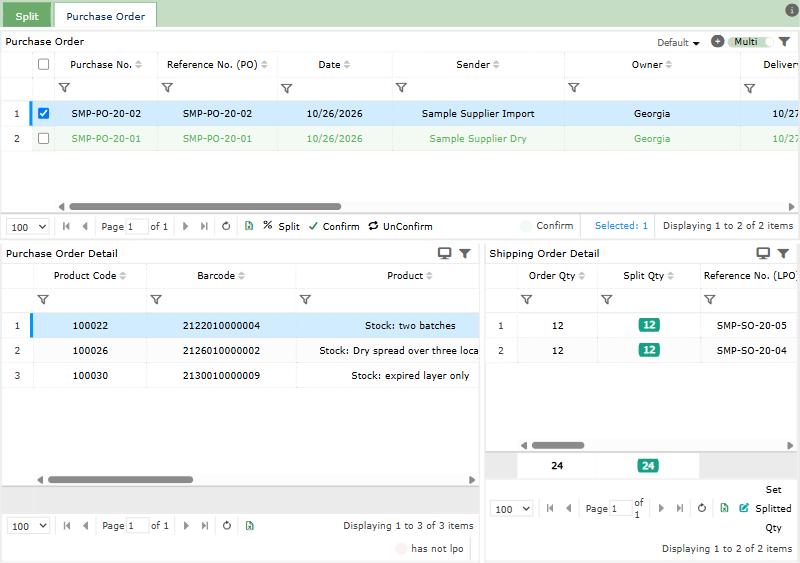
- Open Shipping Management > Split, select the PO and click Split, then confirm. Linari shares out the received goods between the stores.
- Check the shares: select a line of the PO under Purchase Order Detail, and Shipping Order Detail shows each store’s Order Qty and Split Qty. To change a share, select the store line and click Set Splitted Qty.
- Select the PO and click Confirm. The store orders move to InProcess and are ready to pick. UnConfirm takes the confirmation back.
How Linari shares out the goods:
- The unit is a whole pack (PCB), and everything received is given out: nothing is left in stock.
- Sequential: the stores, in their order on the floor, get their full order until the goods run out.
- Proportional: each store gets packs in proportion to what it ordered.
- With Allocate One PCB Before Split, every store that ordered at least one pack gets one pack first.
- Whole packs left over go round the stores in turn; a remainder smaller than a pack goes to the first store.
4. Pick for the stores
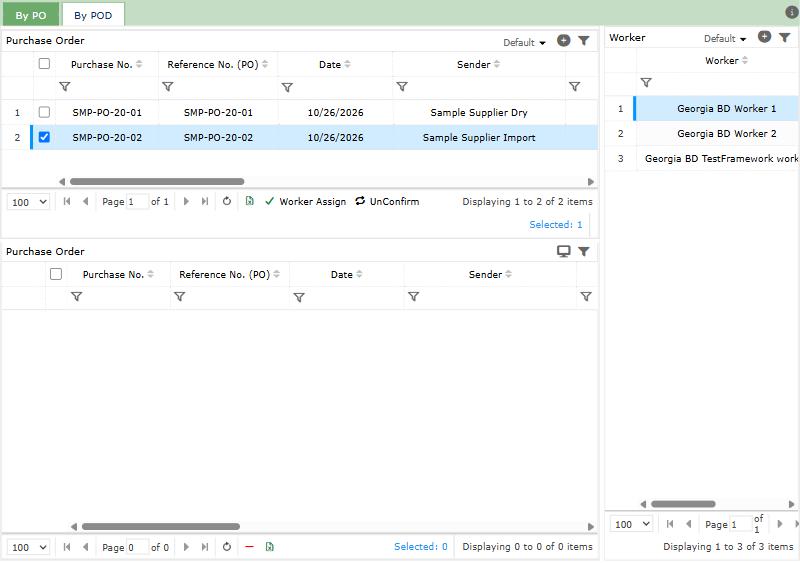
- Open Shipping Management > Picking Worker Assign(BD). On the By PO tab, select a worker under Worker on the right and a confirmed PO at the top, and click Worker Assign: the whole PO goes to that worker and moves to the grid below. On the By POD tab, give one PO line, one product for all of its stores, with Assign to Worker.
- The worker opens Picking on the handheld, chooses the PO and a line, and marks each store’s quantity as it is picked. Modify Picking records a smaller quantity, and Waste Picking a loss. When every store is marked, Confirm finishes it.
- Without the handheld, open Shipping Management > Picking Finish (BD), select the PO or the line and click Finish. On By PO, Modify Pick Qty changes a quantity first.
Finishing a pick takes the stores’ shares out of the delivery and, when your warehouse checks orders, creates a checking task for each store line.
To undo a pick, open Shipping Management > Checking, select a checking task of the PO and click Rollback-BD: the picking of the whole PO is taken back, and its goods return to the delivery. This works as long as none of the PO’s goods are checked.
5. Check, pallets and dispatch
Checking, pallets and dispatch work as in a standard warehouse: see Check orders and Dispatch. In a cross-dock warehouse:
- Each store line is a checking task, and the checked quantity cannot be more than the store’s share.
- A pallet holds the goods of one store only. Its label is the warehouse’s pallet mask, the date and a number, for example BD-261027-001.
- Waste on Checking records a loss found while checking.
- The dispatch note uses each store’s share. With Create Waybill After Invoice, Linari creates one waybill for each store on the truck.
How settings change a cross-dock warehouse
Linari sets these during setup; ask your Linari contact to change one.
| Setting | What changes |
|---|---|
| Flow Type | Break-Down makes the warehouse cross-dock: the BD pages appear, and locations, put-away and stock counts are not used. |
| Split Method | Sequential: stores in floor order get their full order first. Proportional: stores share in proportion to their orders. |
| Allocate One PCB Before Split | Every store that ordered at least one pack gets one pack before the rest is shared. |
| Enable Count With PCB | Receiving counts are whole packs. |
| Receipt More Than Receiving | The count may be higher than expected, within the Tolerance. |
| Prevent Sibling Merge | A dispatch cannot hold the same product of the same store order twice. |
| Has Check Process | Finished picks become checking tasks. Off: they go straight to dispatch. |
| Has Pallet | Checked goods go on pallets; the pallet labels start with the Pallet Mask Abbreviation. |
| Create Waybill After Invoice | One waybill per store per truck is created when the dispatch is invoiced. |
Common problems
| Message | Why | What to do |
|---|---|---|
| There is no LPO for this task, so you can not count! | No store ordered this product. | Count only products that are on a store order, or ask for the missing store order. |
| Inventory quantity is zero for the PO. | The PO has no receipt yet. | Create the receipt first. |
| SplitMethod is not configured for the warehouse. | The warehouse has no Split Method. | Ask your Linari contact to set it. |
| It is not possible to split confirmed shipping orders. | The split is already confirmed. | UnConfirm first. |
| It is not possible to confirm before split. | The PO is not split yet. | Click Split first. |
| The inventory and the split quantity are not equal. / Split quantity mismatch on one or more products. | A store share was changed by hand and the shares no longer add up to what was received. | Correct the shares, or click Split again. |
| This purchase order is already assigned to a worker. | Someone gave the PO to a worker a moment ago. | Reload the page. |
| You have unmarked picking. | A store’s quantity is not marked yet. | Mark every store, then Confirm. |
| Checking already completed for this PO. | Some of the PO’s goods are checked, so the pick cannot be rolled back. | Record a loss with Waste instead. |
| you can not cancel record with this warehouse, flow type is not picking! | Picking and checking cannot be cancelled in a cross-dock warehouse. | Use Rollback-BD before checking, or Waste. |
| Pallets must contain products from one orderer only! | The pallet already holds another store’s goods. | Use a new pallet for this store. |
What happens next
Completed pallets go to dispatch: see Dispatch. For what each status means, see Statuses.