Help centre
How to check orders in Linari WMS
In short. Checking is a second look at picked goods before they leave. When your warehouse checks orders, every finished pick becomes a checking task. The supervisor gives the tasks to a checker; the checker confirms each line on the handheld and, in a warehouse that ships on pallets, puts it on a pallet. A completed pallet is ready for dispatch.
- Picks that are finished appear on Shipping Management > Checking.
- Select a checker and the tasks and click Assign Worker.
- The checker opens Checking on the handheld and confirms each line, with the pallet barcode when you ship on pallets.
- Complete the pallet on Consolidation.
- The completed pallets go to dispatch.
This article covers a standard warehouse. Break-down (BD) warehouses check per store: see Cross-dock (break-down) warehouses.
Before you start
- The warehouse setting Has Check Process is on. Without it, picks go straight to dispatch and there is nothing to check.
- The picks are finished. See Pick orders.
- The checker has the Checking permission on the handheld.
- If you ship on pallets, the pallet labels follow your warehouse’s pallet mask: the mask, the date and a number, for example ABC-261026-001.
Step by step: in the web app
- Open Shipping Management > Checking. The top grid holds the tasks without a checker; the middle grid, the tasks already assigned; the Worker grid on the right shows each checker and how many tasks they have.
- Select a checker in Worker, select the tasks in the top grid and click Assign Worker. Confirm. Each task is shown with its result: Assigned, or AlreadyAssigned and Done when it was not taken. The tasks appear on the checker’s handheld.
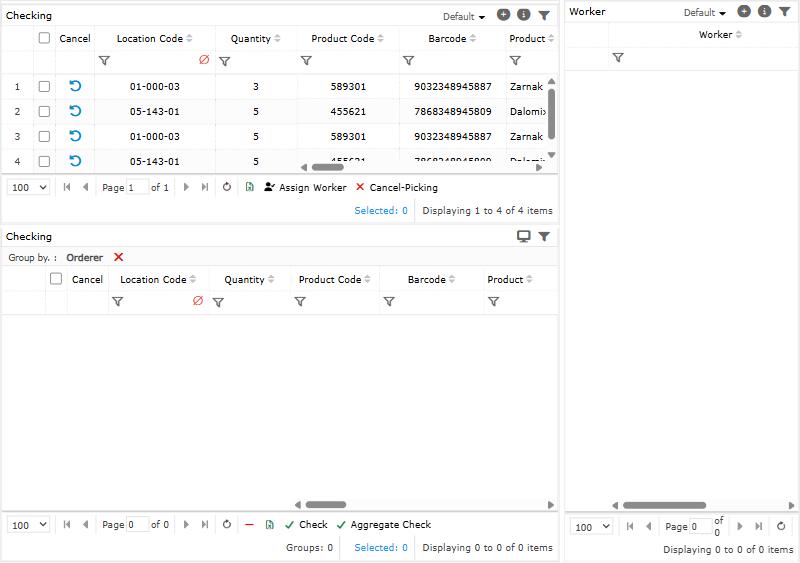
- To check from the web, select a task in the middle grid and click Check (with pallets) or Check WP (without pallets). Enter the Pallet barcode, the Quantity, the Pallet Type and the Pallet Status (Intact or Broken). Aggregate Check checks several selected tasks onto one pallet.
- Open Shipping Management > Consolidation. The pallets being filled are listed with their lines. Select the full pallets and click Complete, and confirm. A completed pallet takes no more goods.
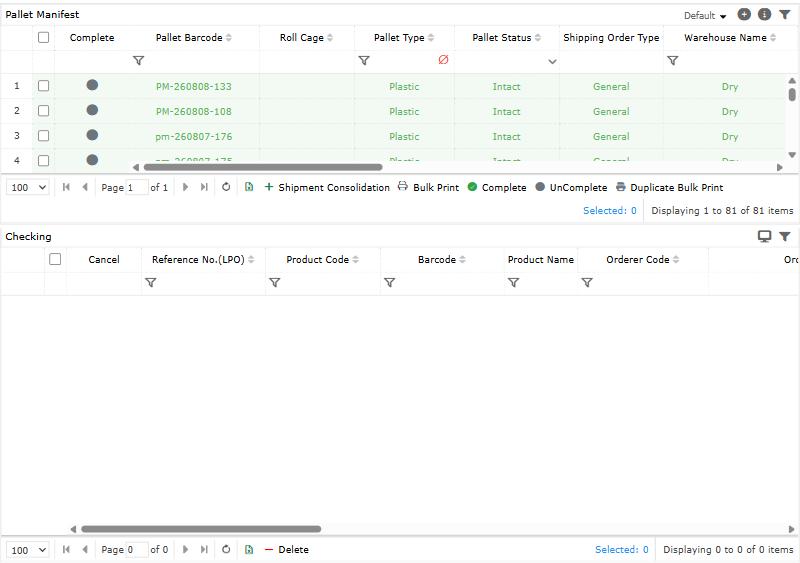
- To undo: the minus button under the middle grid takes the checker off a task; Delete on a pallet line takes it off the pallet and returns the task to the top grid; UnComplete reopens a pallet.
Step by step: on the handheld
- On the home screen, under Shipping, open Checking. Choose Store or Consignee(B2B), depending on how your work is grouped.
- Open a task and tap Confirm on a line after you have checked the goods.
- Without pallets, confirm “Are you sure to confirm …?”. With pallets, scan the Pallet label, check the Quantity, choose the Pallet Status and Pallet Type, and save. For a roll-cage pallet, scan the Roll Cage Barcode too when your warehouse requires it.
- If you check fewer than were picked, enter the real quantity: the rest stays as a new checking task.
- Cancel and Waste appear on a line when your role allows them.
- To complete pallets on the handheld, open Consolidation. Pallets being filled are under In Progress; tap the tick and confirm “Are you sure to confirm this pallet …?”. A completed pallet moves to Ready For Ship. When your warehouse records boxes, enter the Big Box Quantity and Small Box Quantity.
How settings change checking
Linari sets these during setup; ask your Linari contact to change one.
| Setting | What changes |
|---|---|
| Has Check Process | On: every finished pick becomes a checking task. Off: picks go straight to dispatch. |
| Auto Check | Checking tasks are created already checked. |
| Has Pallet | On: checked goods go on pallets, completed on Consolidation. Off: no pallets; dispatch uses Consolidation WP and Dispatch WP. |
| Pallet Mask Abbreviation | The first part of every pallet label, for example ABC. |
| Has Checking QC | A quality check follows checking, within the Checking QC Start Time and End Time; a pallet can be completed only after it. |
| Has Box On Shipping | Box quantities are entered when a pallet is completed. |
| Enforce Rollcage Barcode Scanning | A roll-cage pallet needs its roll-cage barcode. |
Statuses
A checking task is without a checker, assigned, or done. Pallets are In Progress while they are filled and Complete (Ready For Ship on the handheld) when they are ready for dispatch. For all statuses, see Statuses.
Common problems
| Message | Why | What to do |
|---|---|---|
| Please select a worker. / Please select at least one checking task. | Nothing is selected in one of the grids. | Select a checker and at least one task. |
| This checking task is already assigned to a worker. Please reload the page. | Someone assigned the task a moment ago. | Reload the page. |
| This checking task is done. You cannot assign a worker. | The task is already checked. | Nothing to do. |
| you must follow this pattern (…) | The pallet label does not match the warehouse’s pallet mask. | Scan a pallet label printed for this warehouse. |
| Checking already done or not found! | The line was checked on another device or on the web. | Refresh the list. |
| Pallets must contain products from one orderer only! | The pallet already holds goods for another customer. | Use a new pallet for this customer. |
| A pallet must contain products for one consignee only. | The pallet already holds goods for another consignee. | Use a new pallet for this consignee. |
| Can’t add products to this pallet because it is completed. | The pallet was already completed. | Use a new pallet, or UnComplete this one. |
| Pallet […] has no details. Please add at least one detail before continuing! | The pallet is empty. | Put goods on it before you complete it. |
| … has checking rows pending QC. Please wait … | The quality check of this pallet is not finished. | Wait, or complete the quality check first. |
| The checking task is on a pallet. You cannot remove the worker. | The line is already on a pallet. | Delete it from the pallet first. |
| This pallet is completed. You cannot remove a checking line from it. | The pallet is completed. | UnComplete the pallet first. |
What happens next
Completed pallets go to dispatch: see Dispatch.