Help centre
Stock types in Linari WMS
In short. Linari keeps every quantity of stock under a Product Status. Good stock is GoodSet; damaged, returned or held goods carry a status of their own. An order line asks for one status and reserves only stock of that status, so damaged or held goods never go out by mistake. Every stock line also has two quantities: Real, what is recorded in the warehouse, and Available, what can still be given to an order.
- Received goods come in as GoodSet, and customer returns as Return.
- An order line reserves only stock of its own status: GoodSet, unless you choose another.
- When goods are damaged or must be held, change their status: on the web, or on the handheld under Inventory.
- Available drops when stock is reserved for an order. Real drops when the goods leave the warehouse.
Product statuses
These are the general statuses. Your company’s list can hold more; ask your Linari contact to add one.
| Status | Use it for | What Linari does with it |
|---|---|---|
| GoodSet | Good stock that can be sent to customers. | The default for receiving and for order lines. |
| Damaged | Broken or spoiled goods. | Goods taken back from a pick cancelled as damaged get this status. |
| Return | Goods sent back by a customer. | The default for return receiving and for returns to the sender. |
| QUARANTINE | Goods held until they are checked, for example for quality. | Nothing more: they wait until you change their status. |
| Unavailable | Goods kept out of orders for any other reason. | Nothing more. |
| Expired At Receiving | Goods that arrived past their expiry date. | Nothing more. |
| Short Expiry Date | Goods too close to their expiry date to send out. | Nothing more. |
The rule that matters: Linari reserves only stock whose status matches the order line. A status other than GoodSet therefore keeps the goods out of normal orders until you change it back. To send damaged or returned goods back to a supplier, the order lines ask for that status; a return to the sender asks for Return by default.
Real and available stock
| Quantity | What it means | When it changes |
|---|---|---|
| Real | What is recorded in the warehouse. | A receipt adds to it. It drops when the goods leave: when the dispatch is invoiced. In a warehouse with locations, the location’s quantity drops when the pick is finished. |
| Available | The part of Real that can still be given to an order. | It drops when an order line is confirmed and stock is reserved. It returns when the line is unconfirmed. In a warehouse with locations, received goods become available only after put-away. |
The difference between the two is stock that is in the warehouse but not free. Inventory Management > OnHand shows where it is: On Put (waiting for put-away), On Pick, On Check, On Pack and On Ship.
Where to look:
- Inventory Management > Inventory: stock per product, status, expiry date and batch, with Real Qty and Available Qty.
- Inventory Management > Location Inventory: stock per location, in a warehouse with locations.
- Inventory Management > OnHand: stock that is not available, by stage.
- On the handheld, Inventory: Real and Available per line, with Sum Real and Sum Avail at the bottom. See Handheld basics.
Before you start
- Only available stock can change status. Stock reserved for an order can only move to another location; unconfirm the order line first if its status must change.
- Your role has the permission to move stock, on the web or on the handheld.
Change the status: in the web app
In a warehouse with locations:
- Open Inventory Management > Location Inventory. The Product Status column shows the status of each line.
- For one line, click the arrow in its Transfer column. Choose the new Status and enter the Quantity; it starts at the available quantity. Leave Location as it is to change only the status, or choose another location to move the goods too, for example to a damaged-goods area. Click Save.
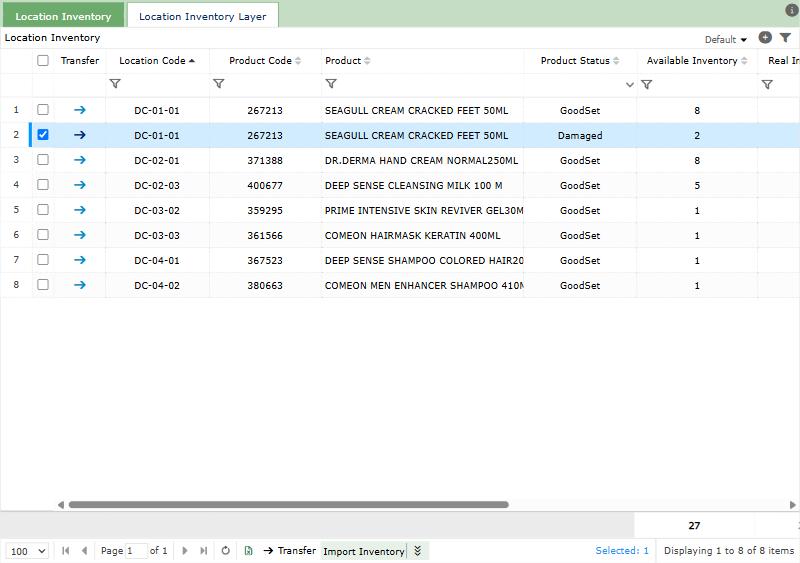
- For several lines at once, select them and click Transfer under the grid. Tick Change Status and choose the Destination Status. To move them too, tick Change Location and choose the Destination Location. Click Save.
- The change is listed on Inventory Management > Location Transfer, with From Status and To Status.
In a warehouse without locations:
- Open Inventory Management > Inventory.
- For one line, click Change Status on the line, choose To Status and enter the Quantity. You can also change the batch number and expiry date there.
- For several lines at once, select them and click Change Status above the grid, then choose the Destination Status. All of their available quantity changes status.
- The changes are listed on Product Status Changes, with From Status, To Status and who did it. Many changes at once can be uploaded from Excel there with Upload.
Change the status: on the handheld
- On the home screen, under Stock, open Inventory and find the product.
- On the Inventory tab, tap the line, choose the Product Status and enter the Quantity.
- On the Location Inventory tab, tap the line and choose the Product Status. Choose a Destination too if the goods move. Without a new status, only the location changes.
- Save.
Status on receiving and on order lines
- Receiving: lines from a purchase order start as GoodSet. To receive goods under another status, select the lines on Receiving and use Change Status while the receiving is Initial or waiting for confirmation. The receipt puts the stock under that status.
- Return receiving: lines start as Return. With the warehouse setting Default Return Status, they always stay Return.
- Order lines: a line entered by hand starts as GoodSet. In an Excel import, the productstatus column must hold the status name exactly as it is in your list. The status of a line can change only while the line is Initial.
How settings change stock
Linari sets these during setup; ask your Linari contact to change one.
| Setting | What changes |
|---|---|
| Has Location | On: stock is kept per location, received goods are available after put-away, and status is changed with Transfer. Off: received goods are available at the receipt. |
| Default Return Status | Returned goods are always received as Return. |
| Available Deduction Stage | ShippingOrderConfirm: stock is reserved when the order line is confirmed. PickingFinish: available stock drops only when the pick is finished. |
| Allocation Strategy | The order in which stock of the right status is reserved: FEFO (earliest expiry first), FIFO or LIFO. |
Common problems
| Message | Why | What to do |
|---|---|---|
| N units are reserved for order(s) X. Only Location can be changed for reserved stock. … | Part of the stock is reserved for an order. | Change the status of the available part, or unconfirm the order line first. |
| Product inventory is not enough or has been changed by another operation. | Less is available than you entered, or someone changed the stock a moment ago. | Reload the page and enter at most the available quantity. |
| You must select different quiddityType or BatchNumber or ExpireDate | The new status is the same as the old one. | Choose another status. |
| Quantity cannot be zero! | No quantity was entered. | Enter the quantity to change. |
| You dont allow select multi warehouse. | The selected lines belong to more than one warehouse. | Select lines of one warehouse. |
| Source location is locked for transfer | The location is locked, for example by a stock count. | Wait until the count is finished, or ask your supervisor. |
| This product cannot be transferred because its available quantity is zero | All of the stock is reserved for orders. | Nothing to change; ask your supervisor. |
| No available inventory found. | The order line asks for a status that has no available stock. | Check the line’s status, or change the status of the stock you want to send. |
| The product status[X] was not found in excelrow[N]! | The status in the Excel file is not in your list. | Write the status exactly as it is in the list, for example GoodSet. |
| The Quiddity Type can be changed only when the current status code is Initial. | The order line is already confirmed. | UnConfirm the line first. |
What happens next
Goods back in GoodSet can be picked again: see Pick orders. To correct quantities after a stock count, see Count stock.